
How to Make the Burning Bridges AI Video, Step by Step
Updated October 11, 2026
Quick answer
Upload one photo to Burning Bridges AI, generate with Full Recast (500 credits), and download a silent 20-second 16:9 MP4. Add the "Burning Bridges" sound in TikTok or Reels when you post.
What You Need
- One photo — JPG, PNG or WebP up to 10 MB. A sharp, well-lit waist-up or full-body photo works best; pets and characters often work too.
- A Burning Bridges AI account — sign-in is required only to generate.
- Credits: Full Recast costs 500 per video. Credits convert at $1 = 100 credits, and one-time packs start at $5.
Step 1 — Pick the Photo
Use a sharp, well-lit photo — for people, front-facing with eyes open and visible, no sunglasses or heavy filters.
For Full Recast, a waist-up or full-body photo gives the animation more to work with. Pets and illustrated or 3D characters often work in this mode.
Step 2 — Meet Full Recast
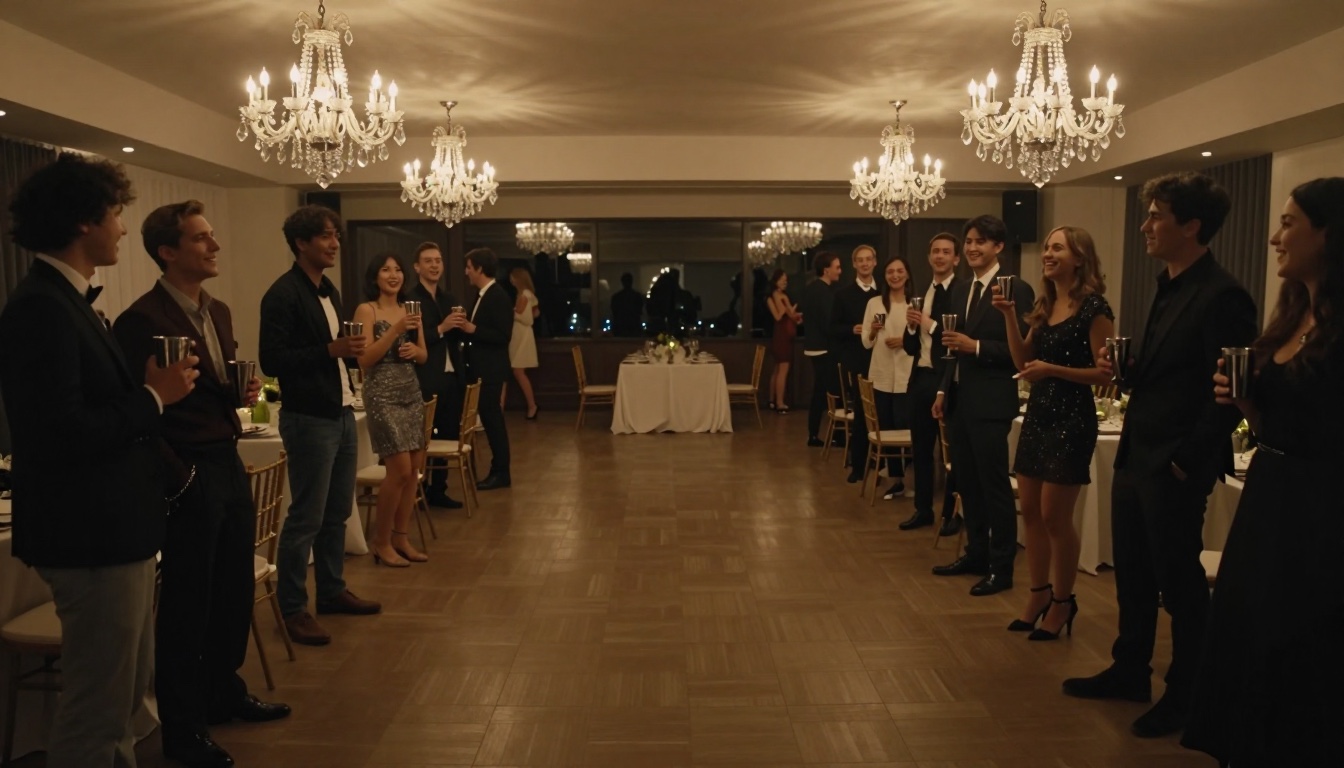
Full Recast builds a new AI-generated version of the party room around your photo and animates it — your look, outfit and character come along, and pets or original characters often work too.
More about photo to videoStep 3 — Generate in the Studio
Open the studio, drop your photo in and hit generate. It usually takes a few minutes — Full Recast composites your photo into the scene and then animates it.
When the video is ready, download the MP4. Videos are created private — nothing is posted to a public gallery.
Step 4 — Download and Add the Sound
The MP4 comes out silent on purpose — no song is included. To post with the original sound, upload the video to TikTok or Reels, tap "Add sound" and search for "Burning Bridges", then pick the sound most posts in the trend use.
The clip is 16:9; you can post it as-is and let the app frame it, or crop it in the platform's editor before publishing.
Step 5 — Post Responsibly
- Mark the video as AI-generated when the platform asks.
- Only use photos of yourself or of people who agreed.
- Don't post real people without their OK — and never photos of minors.
Photo Do's and Don'ts
Do
- Use a sharp, front-facing photo with even light.
- Fill a good part of the frame with the face or body.
- Keep the expression simple — eyes open, slight smile.
Don't
- Sunglasses, masks or heavy beauty filters.
- Strong side profiles or a face smaller than a thumbnail.
- Motion blur, harsh shadows or extreme angles.
Troubleshooting
The video looks off in a few frames
A sharper, more front-facing photo usually fixes it. Subjects that are small in the source photo come out less cleanly — crop in tighter and retry.
I want to put my pet or a character in
Full Recast accepts pets, avatars and characters — try a sharp, well-lit photo of the subject. Results can vary.
The generation is taking a while
Full Recast runs two steps — compositing your photo and then animating it — so a few extra minutes is normal.
The result came out blurry
Start from a higher-resolution photo with the face well lit and unobstructed, then run it again.
Keep Reading
Burning Bridges AI Video FAQ
Upload one photo to Burning Bridges AI, generate with Full Recast (500 credits), wait a few minutes and download the 20-second 16:9 MP4. Add the sound in TikTok or Reels when posting.